The act of linking libraries is a form of code dependency management. When any app is run, its executable code is loaded into memory. Additionally, any code libraries that it depends on are also loaded into memory. There are two type of linking: static, and dynamic. Both offer different benefits to the developer and should be used according to these benefits. This blog post will cover the benefits offered by each and then explain the basics of how to create and link your own libraries on OS X and iOS.
Dynamic Linking
Dynamic linking is most commonly used on OS X and iOS. When dynamic libraries are linked, none of the library's code is included directly into the linked target. Instead, the libraries are loaded into memory at runtime prior to having symbols getting resolved. Because the code isn't statically linked into the executable binary, there are some benefits from loading at runtime. Mainly, the libraries can be updated with new features or bug-fixes without having to recompile and relink executable. In addition, being loaded at runtime means that individual code libraries can have their own initializers and clean up after their own tasks before being unloaded from memory. For more information on overview and design, see Apple's Dynamic Library Programming Topics.
• Libraries
Dynamic libraries are a type of Mach-O binary1 that is loaded at launch or runtime of an application. Since the executable code in a dynamic library isn't statically linked into target executable, this affords some benefits when needing to reuse the same code. For example, if you have an application and a daemon or extension that needs to make use of the same code, that code only has to exist in a single location -- the dynamic library, rather than in both the executable's binary and the daemon's binary. Since dynamic libraries are loaded at runtime, the library is responsible for telling the linker what additional code is needed. This removes the burden of managing what all of the code that you use needs to operate.
• How to verify it's static or dynamic
To use the following command line:
$ otool -L xx.a
Dynamic result:
@rpath/PWCore.framework/PWCore (compatibility version 1.0.0, current version 1.0.0)
/usr/lib/libc++.1.dylib (compatibility version 1.0.0, current version 307.4.0)
/usr/lib/libicucore.A.dylib (compatibility version 1.0.0, current version 57.1.0)
/usr/lib/libsqlite3.dylib (compatibility version 9.0.0, current version 253.0.0)
/usr/lib/libxml2.2.dylib (compatibility version 10.0.0, current version 10.9.0)
/usr/lib/libz.1.dylib (compatibility version 1.0.0, current version 1.2.8)
/System/Library/Frameworks/CFNetwork.framework/CFNetwork (compatibility version 1.0.0, current version 808.2.16)
To configure a per-domain exception so that your app can connect to a non-secure (or non TLSv1.2-enabled secure host), add these keys to your Info.plist (and note that Xcode doesn’t currently auto-complete these keys as of the first Xcode 7 beta seed):
<key>NSAppTransportSecurity</key>
<dict>
<key>NSExceptionDomains</key>
<dict>
<key>yourserver.com</key>
<dict>
<!--Include to allow subdomains-->
<key>NSIncludesSubdomains</key>
<true/>
<!--Include to allow HTTP requests-->
<key>NSTemporaryExceptionAllowsInsecureHTTPLoads</key>
<true/>
<!--Include to specify minimum TLS version-->
<key>NSTemporaryExceptionMinimumTLSVersion</key>
<string>TLSv1.1</string>
</dict>
</dict>
</dict>
There are other keys that you can use to configure App Transport Security as well, such as:
I'm not familiar with Ruby and it's difficult for me to find the reason and fix it. But here is a temporary solution, just to edit the following files to make sure the `-dummy.m` unique then re-package the framework:
$ sudo vi /Users/xiangwei/.rvm/rubies/ruby-2.2.3/lib/ruby/gems/2.2.0/gems/cocoapods-1.1.1/lib/cocoapods/target.rb +174
$ sudo vi /Users/xiangwei/.rvm/rubies/ruby-2.2.3/lib/ruby/gems/2.2.0/gems/cocoapods-1.1.1/lib/cocoapods/generator/dummy_source.rb +8
As we know you can only zoom in to zoom level 20 before iOS 9, zoom level 21 has been supported since iOS 9.
Actually you can zoom in the iOS map to zoom level 21 more, in that case, the background map (building and road) will not be shown any more, but all labels are kept and the coordinate (latitude/longitude) system works properly on it as well, here is the steps to do it:
1. Add world wide overlay on top of map and road and bottom of labels
Overlay:
2. Add another overlay on top of it which can be zoom in/out (just like a PDF or something)
After finish that when you zoom in/out on the map you will see the altitude of camera could be as low as 6 meters, but the iOS map disappears once the altitude of camera less about 202 meters.
Drawing PDF is piece of cake, not much CUP and Memory, but drawing a bitmap image that's memory consuming thing, so please be careful when you covert it on a iPhone.
These graphics contexts are available to your application:
A bitmap graphics context allows you to paint RGB colors, CMYK colors, or grayscale into a bitmap. A bitmap is a rectangular array (or raster) of pixels, each pixel representing a point in an image. Bitmap images are also called sampled images. See Creating a Bitmap Graphics Context.
A PDF graphics context allows you to create a PDF file. In a PDF file, your drawing is preserved as a sequence of commands. There are some significant differences between PDF files and bitmaps:
PDF files, unlike bitmaps, may contain more than one page.
When you draw a page from a PDF file on a different device, the resulting image is optimized for the display characteristics of that device.
PDF files are resolution independent by nature—the size at which they are drawn can be increased or decreased infinitely without sacrificing image detail. The user-perceived quality of a bitmap image is tied to the resolution at which the bitmap is intended to be viewed.
A window graphics context is a graphics context that you can use to draw into a window. Note that because Quartz 2D is a graphics engine and not a window management system, you use one of the application frameworks to obtain a graphics context for a window. See Creating a Window Graphics Context in Mac OS X for details.
A layer context (CGLayerRef) is an offscreen drawing destination associated with another graphics context. It is designed for optimal performance when drawing the layer to the graphics context that created it. A layer context can be a much better choice for offscreen drawing than a bitmap graphics context. See Core Graphics Layer Drawing.
When you want to print in Mac OS X, you send your content to a PostScript graphics context that is managed by the printing framework. SeeObtaining a Graphics Context for Printing for more information.
The opaque data types available in Quartz 2D include the following:
CGPathRef, used for vector graphics to create paths that you fill or stroke. See Paths.
CGLayerRef, used to represent a drawing layer that can be used for repeated drawing (such as for backgrounds or patterns) and for offscreen drawing. See Core Graphics Layer Drawing
CGFunctionRef, used to define callback functions that take an arbitrary number of floating-point arguments. You use this data type when you create gradients for a shading. See Gradients.
CGPSConverterRef, used to convert PostScript to PDF. It is not available in iOS. See PostScript Conversion.
Graphics States
The graphics context contains a stack of graphics states. When Quartz creates a graphics context, the stack is empty. When you save the graphics state, Quartz pushes a copy of the current graphics state onto the stack. When you restore the graphics state, Quartz pops the graphics state off the top of the stack. The popped state becomes the current graphics state.
To save the current graphics state, use the function CGContextSaveGState to push a copy of the current graphics state onto the stack. To restore a previously saved graphics state, use the function CGContextRestoreGState to replace the current graphics state with the graphics state that’s on top of the stack.
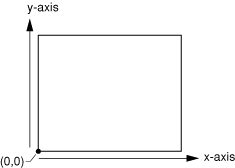
Quartz 2D Coordinate Systems
In Mac OS X, a subclass of NSView that overrides its isFlipped method to return YES.
To draw a box rotated by 45 degrees, you rotate the coordinate system of the page (the CTM) before you draw the box. Quartz draws to the output device using the rotated coordinate system.
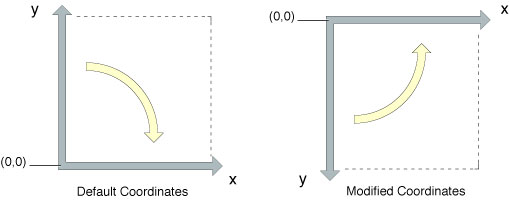
The Quartz coordinate systemModifying the coordinate system creates a mirrored imageThe reason UIKit returns Quartz drawing contexts with modified coordinate systems,to do this, apply a transform that translates the origin to the upper-left corner of the PDF context and scales the y-coordinate by -1.In iOS, if you use a UIImageobject to wrap a CGImage object you create, you do not need to modify the CTM. The UIImage object automatically compensates for the modified coordinate system applied by UIKit.
Modifying the Current Transformation Matrix
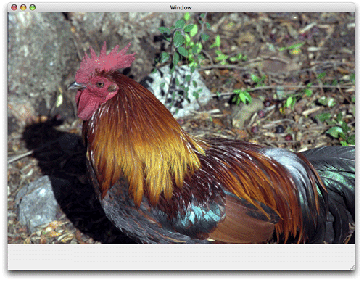
CGContextDrawImage (myContext, rect, myImage);
Figure 5-2 An image that is not transformed
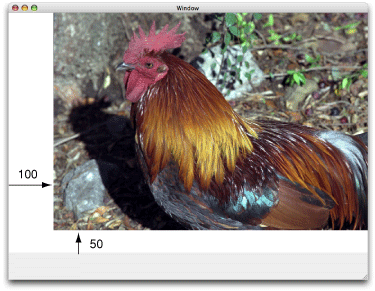
Translation moves the origin of the coordinate space by the amount you specify for the x and y axes. You call the function CGContextTranslateCTM to modify the x and y coordinates of each point by a specified amount. Figure 5-3 shows an image translated by 100 units in the x-axis and 50 units in the y-axis, using the following line of code:
CGContextTranslateCTM (myContext, 100, 50);
Figure 5-3 A translated image
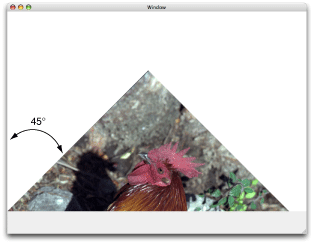
Rotation moves the coordinate space by the angle you specify. You call the function CGContextRotateCTM to specify the rotation angle, in radians.Figure 5-4 shows an image rotated by –45 degrees about the origin, which is the lower left of the window, using the following line of code:
CGContextRotateCTM (myContext, radians(–45.));
The image is clipped because the rotation moved part of the image to a location outside the context. You need to specify the rotation angle in radians.
It’s useful to write a radians routine if you plan to perform many rotations.
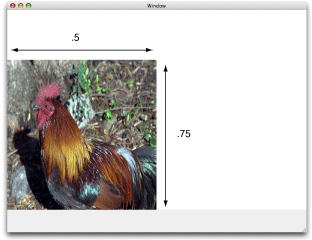
Scaling changes the scale of the coordinate space by the x and y factors you specify, effectively stretching or shrinking the image. The magnitude of the x and y factors governs whether the new coordinates are larger or smaller than the original. In addition, by making the x factor negative, you can flip the coordinates along the x-axis; similarly, you can flip coordinates horizontally, along the y-axis, by making the y factor negative. You call the functionCGContextScaleCTM to specify the x and y scaling factors. Figure 5-5 shows an image whose x values are scaled by .5 and whose y values are scaled by .75, using the following line of code:
CGContextScaleCTM (myContext, .5, .75);
Figure 5-5 A scaled image
Concatenation combines two matrices by multiplying them together. You can concatenate several matrices to form a single matrix that contains the cumulative effects of the matrices. You call the function CGContextConcatCTM to combine the CTM with an affine transform. Affine transforms, and the functions that create them, are discussed in Creating Affine Transforms.
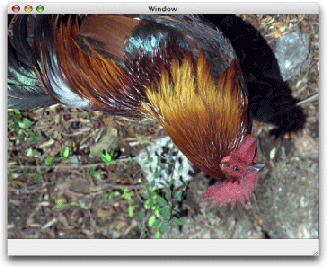
Another way to achieve a cumulative effect is to perform two or more transformations without restoring the graphics state between transformation calls.Figure 5-6 shows an image that results from translating an image and then rotating it, using the following lines of code:
CGContextTranslateCTM (myContext, w,h);
CGContextRotateCTM (myContext, radians(-180.));
Figure 5-6 An image that is translated and rotated